Trade Dash logo

Trade Dash Setup

From a fresh MetaTrader 5 to one-tap control. Panel v4.4 or newer · Telegram bridge v1.5

My computer
My plan

Have these ready

    Your plan is in the .set file name: …_BASE.set or …_PRO.set. Missing a file? Message your seller before you start.

    Your progress

    0of 14 steps done

    About 25 minutes. Every step is a click or a copy-paste.

    Trade Dash checks your licence on a secure server. MT5 blocks every web address until you allow it, so you add the address once.

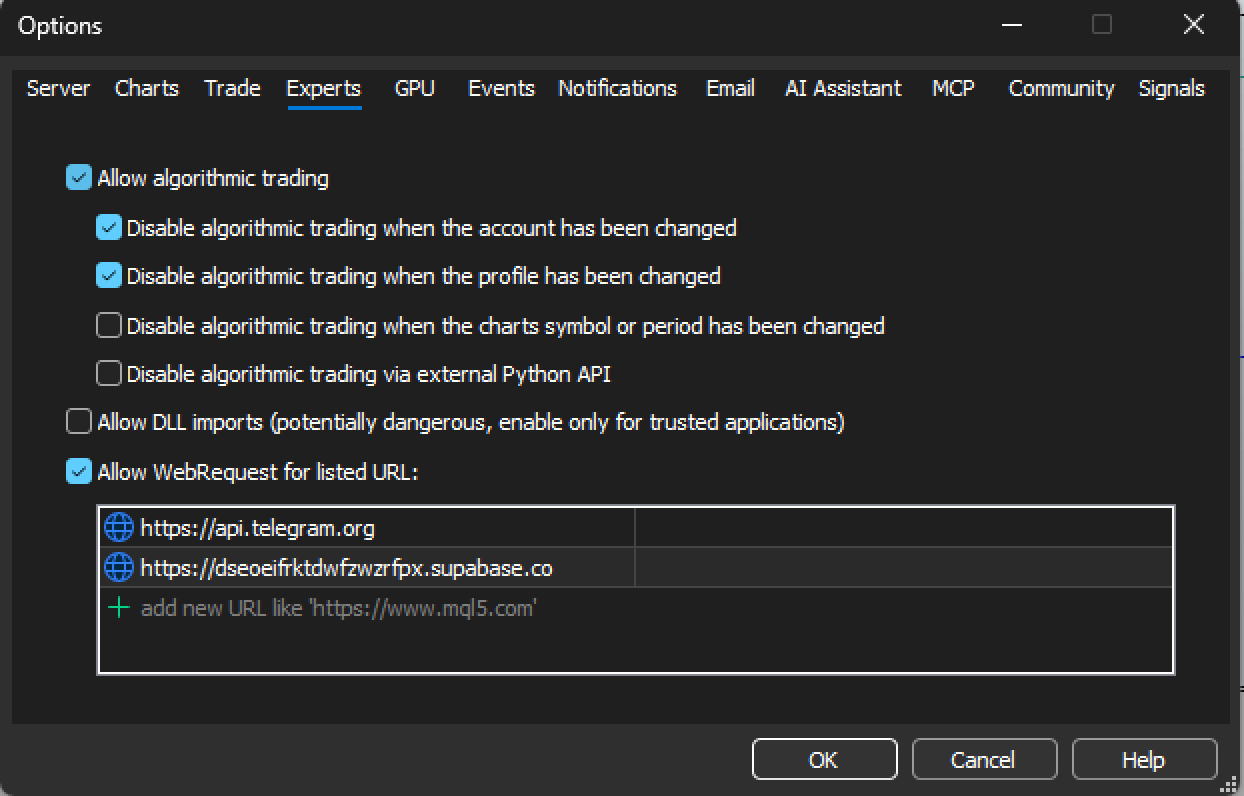
    1. In MT5 open Tools → Options, then click the Experts tab. (Older MT5 versions call it Expert Advisors.)
    2. Tick Allow algorithmic trading and Allow WebRequest for listed URL.
    3. Double-click the line add new URL like 'https://www.mql5.com', paste the address below, press Enter.
    4. PRO: add the Telegram address on the next line the same way.
    5. Click OK. Cancel throws away what you typed.
    Licence serverhttps://dseoeifrktdwfzwzrfpx.supabase.co
    PRO · Telegramhttps://api.telegram.org
    MT5 Options window, Experts tab, with Allow WebRequest ticked and both addresses listed
    Real MT5 screenTools → Options → Experts. Tap a picture to see it full size.
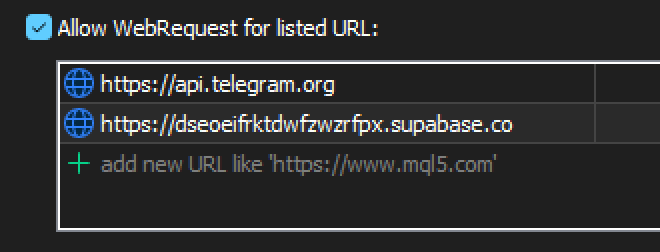
    Close-up of the WebRequest list with both addresses
    Close-upBoth addresses in the list. BASE only needs the supabase line.
    Nine out of ten licence errors start herePaste, don't type. No space before or after, no slash at the end, and it must start with https://. Open Options again afterwards: if the address is still there, it saved.

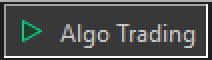
    This toolbar button is the master switch for every Expert Advisor. Click it once so the play icon turns green.

    MT5 toolbar with the Algo Trading button
    Real MT5 screenThe MT5 toolbar. Algo Trading sits next to New Order.
    Algo Trading on, green play icon
    Green play icon: on. Trade Dash can act.
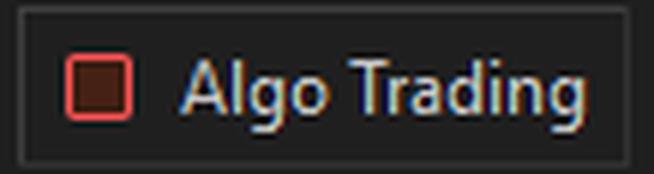
    Algo Trading off, red icon
    Red stop icon: off. No EA can do anything.
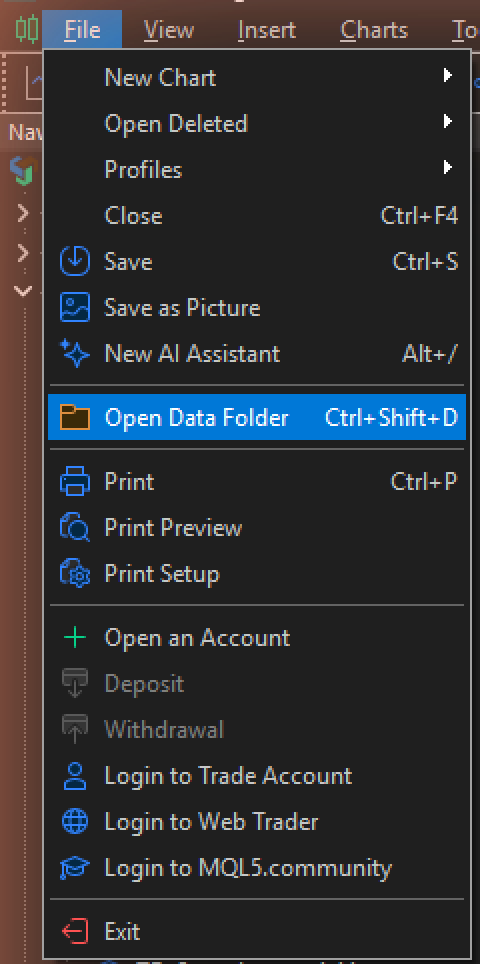
    1. In MT5 open File → Open Data Folder. File ExplorerA Finder window opens.
    2. Open MQL5, then Experts.
    3. Copy your .ex5 file into it. PRO: copy both files.
    MT5 File menu with Open Data Folder highlighted
    Real MT5 screenFile → Open Data Folder. Shortcut: Ctrl+Shift+D.

    Where the file goes

    (data folder)›MQL5›Experts

    Drop it straight into Experts. Not into MQL5 itself, not into Indicators, and not into a folder you make inside Experts.

    On a MacUse the same .ex5 file as Windows. MT5 keeps this folder inside its own app, so always use Open Data Folder to get there.

    Your .set file already holds your licence key. It does not go in Experts. Put it here so it is waiting when you click Load later:

    File → Open Data Folder›MQL5›Presets
    Keep a backup copySave a second copy in your own Documents or cloud drive. Reinstalling MT5 can delete the Presets folder, and this file is the only place your key lives. Never post it in a group chat.
    1. Back in MT5, open View → Navigator if the panel on the left is hidden.
    2. Right-clickTwo-finger tap (or Control-click) Expert Advisors → Refresh.
    3. Trade Dash now shows in the list.
    IllustrationWhat the Navigator lists after a refresh. The version number on your file may be newer.

    Still missing? Close MT5 and open it again. A restart always re-reads the folder.

    1. Open a chart of the symbol you trade, for example XAUUSD. The panel only manages positions on that chart's symbol. Timeframe doesn't matter.
    2. Drag TradeDash_Pro from the Navigator onto the chart. A settings window opens.
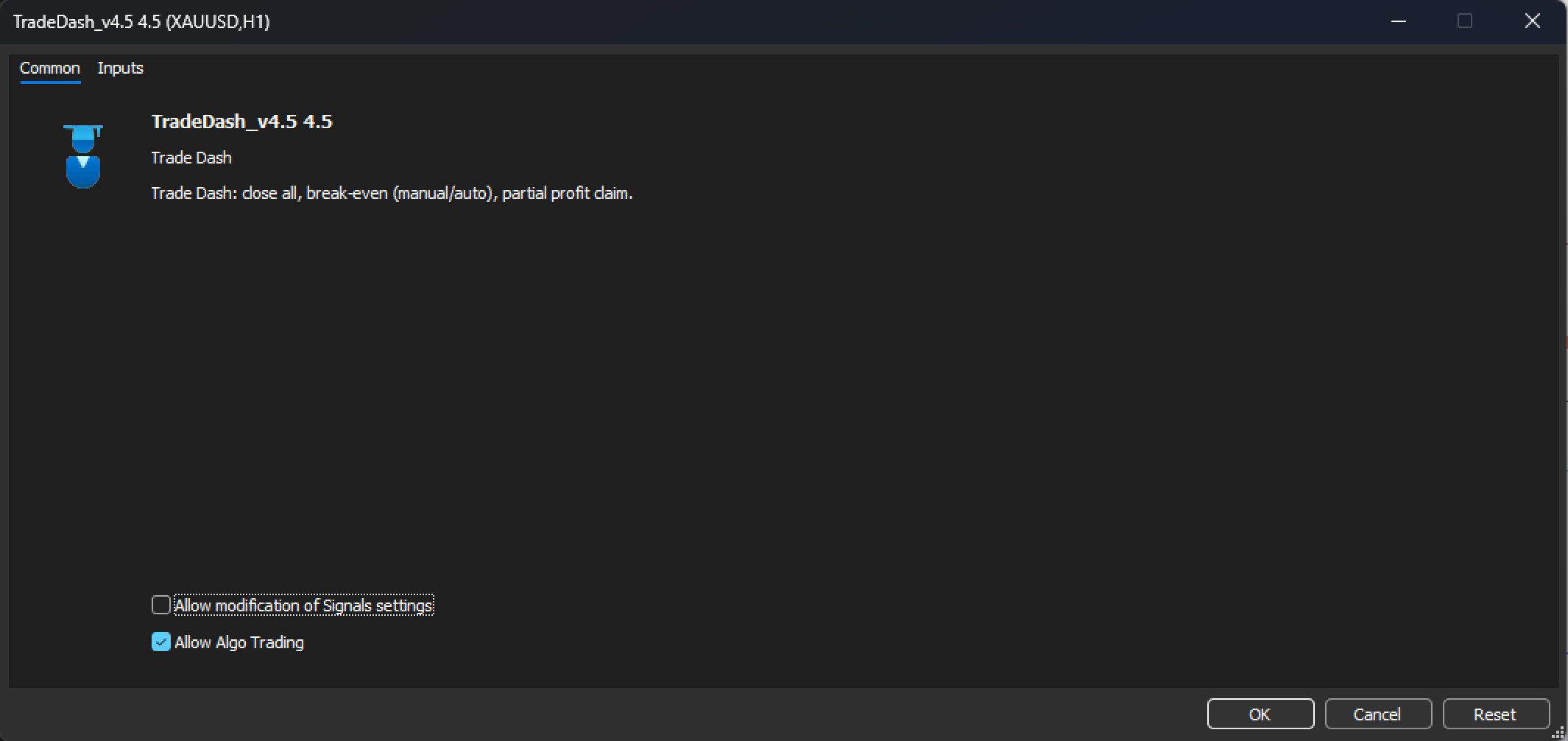
    3. On the Common tab, make sure Allow Algo Trading is ticked.
    EA settings window, Common tab, Allow Algo Trading ticked
    Real MT5 screenCommon tab. The title bar shows your own file name and version.
    Close-up: Allow Algo Trading ticked
    Close-upAllow Algo Trading must be ticked.
    Two switches, both onThe toolbar Algo Trading button (step 2) covers the whole of MT5. This tick box covers this one EA. If either is off, Trade Dash can't act.
    1. Click the Inputs tab.
    2. Click Load on the right, pick your .set file, click Open.
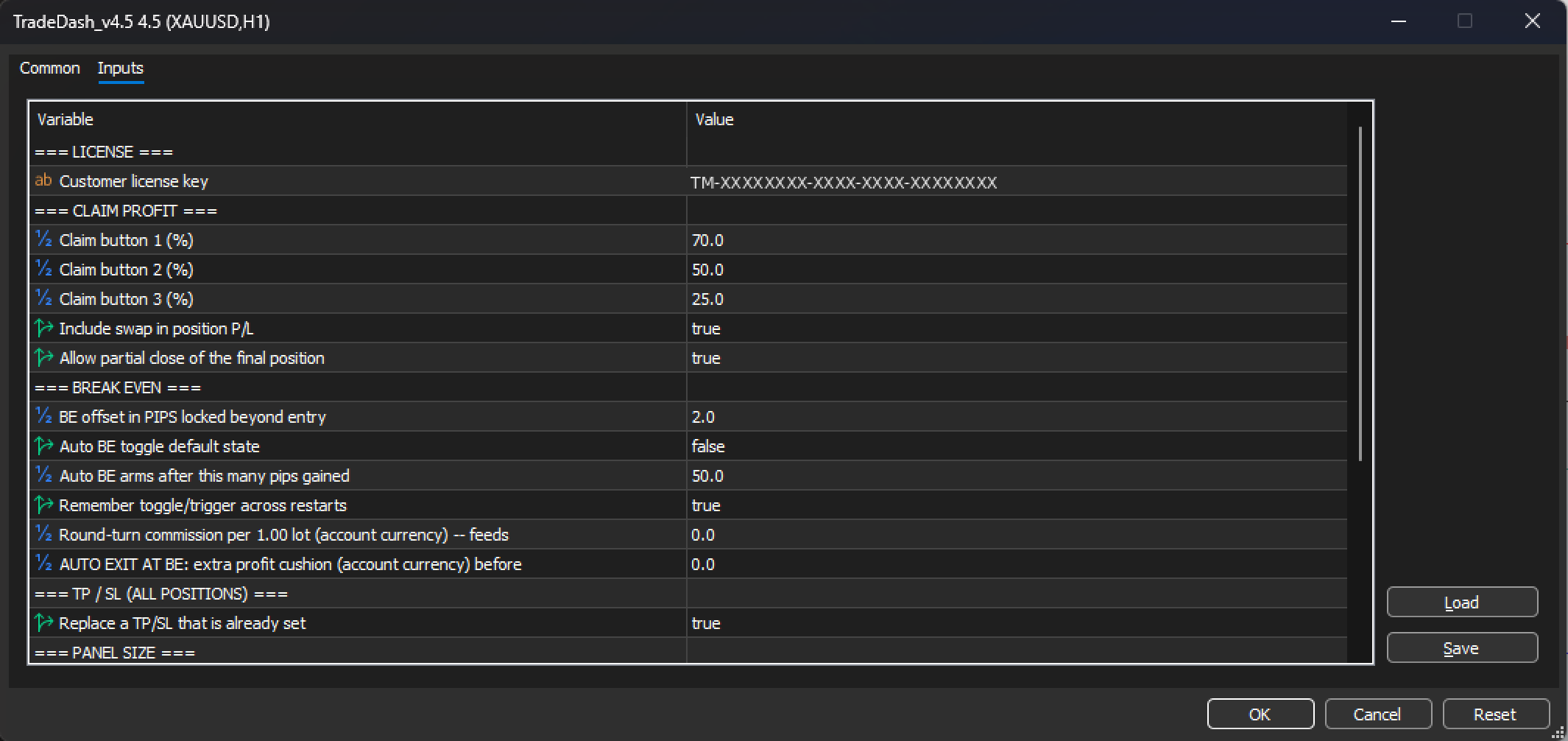
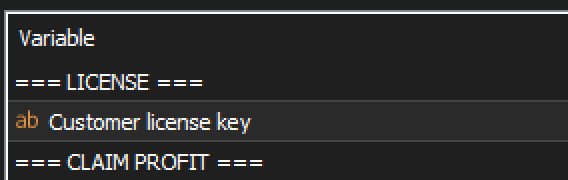
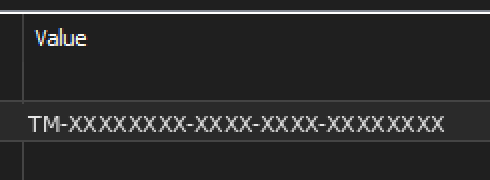
    3. Check Customer license key now shows a key starting TM-. You never type it yourself.
    4. Click OK.
    EA settings window, Inputs tab, licence key filled in, Load button on the right
    Real MT5 screenInputs tab after Load. Tap to see it full size.
    Close-up: Customer license key row, name columnClose-up: Customer license key row, value column
    Close-upThe key fills in by itself. Here it is replaced with X's; yours shows your real key.
    Close-up: Load and Save buttons
    Close-upThe Load button, right side of the Inputs tab.
    Never edit the key row by handOne wrong character and the licence check fails. If it looks wrong, click Load again.
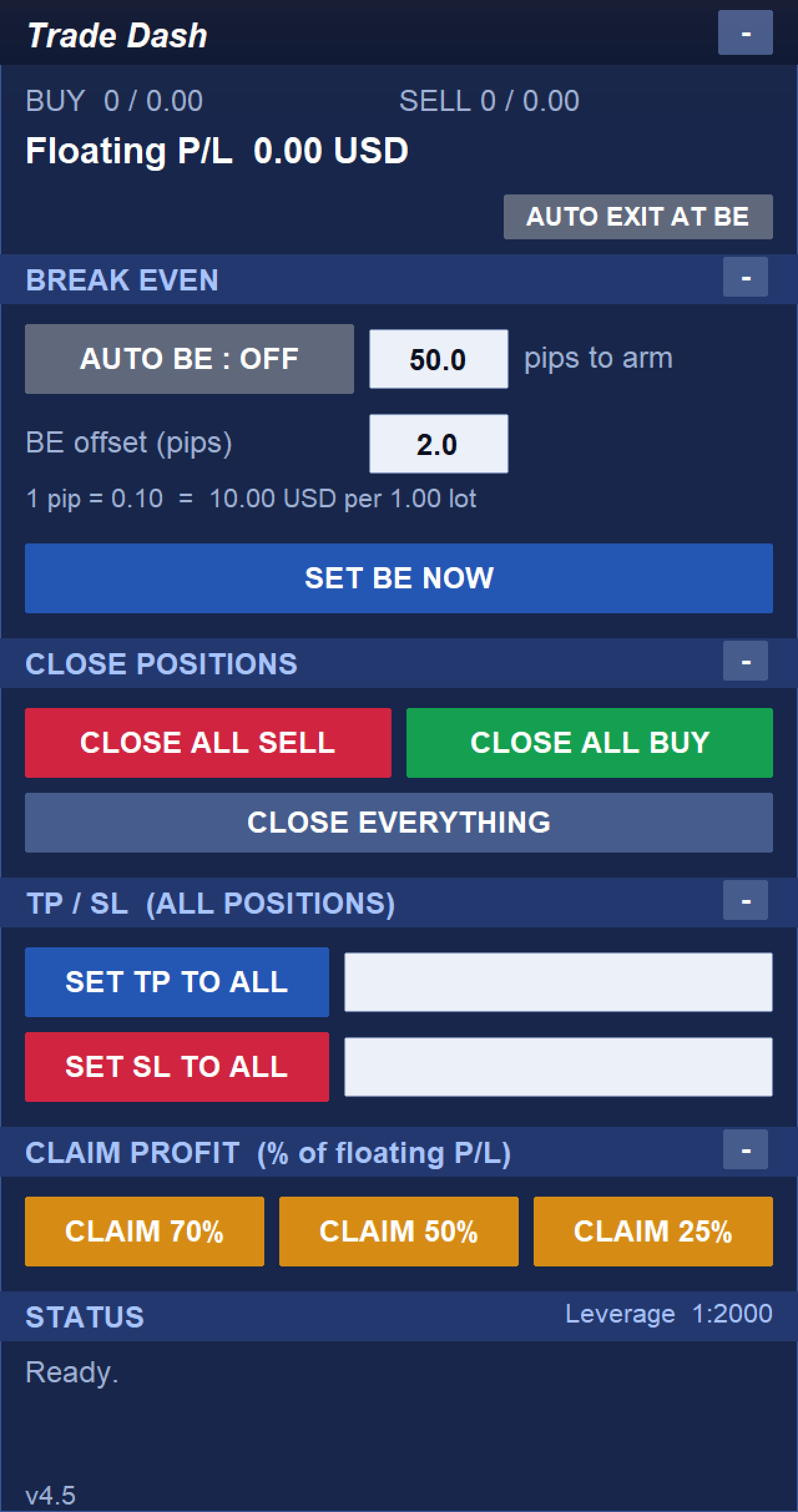
    The Trade Dash panel on a live chart, status Ready
    Real MT5 screenThe panel on a chart, status Ready.

    All three must be true:

    • The Trade Dash panel sits at the top-left of the chart.
    • At the top-right corner, the EA name has a blue cap icon next to it. Grey means Algo Trading is off.
    • The STATUS line at the bottom of the panel says Ready.
    Top-right corner of the chart showing the EA name and blue icon
    Real MT5 screenTop-right corner of the chart.
    Status saysWhat to do
    Ready.Done. Your licence is active.
    License inactive. + Enter your license key in the EA Inputs.The .set didn't load. Redo step 7 on the Inputs tab.
    License inactive. + License server unreachable (MT5 error 4014)The web address is missing or mistyped. Redo step 1.
    License inactive. + License server unreachable (any other error number)Check your internet connection, then check step 1.
    License inactive. + any other messageThe licence was refused: expired, disabled or in use on another computer. Message your seller.
    Panel too big or too small on a Mac?A Mac can draw the panel and its text at a different size. Press F7 on the chart (fn+F7 on some keyboards) → Inputs → === PANEL SIZE ===. Change Panel size (buttons, spacing) first, then Text size on the panel. 1.00 is normal. On a Retina Mac, 1.3 and 0.8 is a good start. Click OK and the panel changes at once.
    You're set upBASE ends here. Before using a live account, try every button once on a demo account with a small position open. Buttons act at once, with no confirmation.

    You make a private bot that only you control. Its token stays on your computer. Nobody else ever needs it, including your seller.

    1. In Telegram, search @BotFather and open the one with the blue tick. Copies exist.
    2. Tap Start, then send /newbot.
    3. Name: anything, for example Trade Dash John.
    4. Username: must end in bot, for example TradeDash_John_bot.
    5. BotFather replies with a token (numbers, a colon, then letters). Copy it to a safe place.
    B
    BotFatherbot
    /newbot
    BotFather
    Alright, a new bot. How are we going to call it? Please choose a name for your bot.
    Trade Dash John
    BotFather
    Good. Now let's choose a username for your bot. It must end in `bot`.
    TradeDash_John_bot
    BotFather
    Done! Congratulations on your new bot. … Use this token to access the HTTP API:
    8123456789:AAF-example-do-not-use
    IllustrationThe BotFather chat. The token shown is fake.
    The token is a passwordAnyone with it can read and fake your bot's messages. Never paste it into a group, a screenshot or a support chat. If it leaks, send BotFather /revoke to get a new one.
    1. Search @userinfobot in Telegram and tap Start.
    2. Copy the number after Id:. It is a long number, usually 8 to 10 digits, not your @username.
    U
    userinfobotbot
    /start
    userinfobot
    @john_tan
    Id: 987654321
    First: John
    Lang: en
    IllustrationCopy the Id number. The one shown is an example.

    Search the username you just created (for example @TradeDash_John_bot), open it and tap Start.

    Don't skip thisTelegram blocks a bot from messaging anyone who never pressed Start. If you skip it, the bridge runs fine but you never receive anything.
    1. Edit the copy in MQL5 › Presets (the folder Load opens). Copy it to your backup afterwards.
    2. Right-click the .set file → Open with → Notepad.
    3. Control-click the .set file → Open With → TextEdit.
    4. Scroll to the bottom. Paste the token right after InpTelegramToken= and the ID right after InpTelegramChatID=. Use the lines with nothing after the =, not the ; example: lines.
    5. Click File → Save. The name must still end in .set, not .set.txt.
    6. Press Cmd+S. If TextEdit asks, keep the .set ending, not .set.txt or .rtf.
    ; ------------------------------------------------------------ ; FILL IN THE TWO LINES BELOW, then save this file. ; Type the value straight after '=' - no spaces, no quotes. ; ------------------------------------------------------------ ; Bot token from @BotFather ; example: InpTelegramToken=123456789:AAF-xxxxxxxxxxxxxxxxxxxxxxxxxxxx InpTelegramToken=8123456789:AAF-example-do-not-use ; Your numeric chat ID ; example: InpTelegramChatID=987654321 InpTelegramChatID=987654321
    IllustrationThe bottom of your .set file after filling in. Your values go on the two coloured lines. Values shown are fake.
    RuleRightWrong
    No space after =InpTelegramChatID=987654321InpTelegramChatID= 987654321
    No quotesInpTelegramToken=8123:AAF-xInpTelegramToken="8123:AAF-x"
    Whole tokenEverything, colon includedOnly the digits before the colon
    ID is a number987654321@john_tan
    1. Open any second chart in the same MT5 window. A quiet pair on D1 is ideal.
    2. Drag TradeDash_Telegram_Bridge from the Navigator onto it.
    3. Common tab: tick Allow Algo Trading.
    4. Inputs tab: Load the same .set file. Check the licence key, bot token and chat ID rows are all filled, then click OK.
    Separate charts, same MT5Panel and bridge must sit on different charts in one MT5 window. Both on one chart, or in two copies of MT5, won't work. Never run two bridges with the same bot: they steal each other's messages.

    The bridge can't place or close orders on its own. It only passes your taps to the panel.

    T
    Trade Dash Johnbot
    /start
    Trade Dash
    MENU
    - - - - - - - - - - - - - - -
    Choose an action below, or send HELP.
    📊 STATUS❓ HELP
    ⚡ CLOSE ALL ⚡
    💰 CLAIM 70%💰 CLAIM 50%💰 CLAIM 25%
    🚨 SET BE NOW 🚨
    🤖 AUTO SET BE: 🔴 OFF
    🤖 AUTO EXIT AT BE: 🔴 OFF
    🏁 SET TP ALL🛡 SET SL ALL
    IllustrationThe reply to /start and the button keyboard. A toggle shows a green circle when it is ON.

    Open the chat with your own bot and send /start. Within a few seconds it replies MENU and the button keyboard appears.

    Tap STATUS first. It changes nothing and proves the link works.

    No reply?Check in this order: you pressed Start on your bot (step 11); https://api.telegram.org is in the list (step 1); the bridge chart shows the blue icon; the chat ID is the number, not your @name. Then open View → Toolbox → Experts tab and read what the bridge says.
    Stale taps are droppedA trading command older than 10 seconds is thrown away, never fired late. If your signal drops while you tap CLOSE ALL, just tap again.
    Test on demo firstEvery button acts the moment you tap it. Try each one on a demo account with a small position open.

    Something not right?

    Pick what you see. Most fixes take under a minute.

    Trade Dash isn't in the Navigator

    The .ex5 isn't in MQL5 › Experts. Redo step 3, then Refresh or restart MT5.

    No panel appears on the chart

    MT5 is blocking the EA. Check the toolbar Algo Trading button is green (step 2) and the Common tab box is ticked (step 6).

    Status says License inactive

    Read the second line under it. "Enter your license key" means the .set didn't load (step 7). "License server unreachable (MT5 error 4014)" means the web address is missing or mistyped (step 1). Any other "unreachable" error: check your internet, then step 1. Anything else, message your seller.

    It worked yesterday, now it says inactive

    Your internet was down too long, or the licence expired. Reconnect and wait a few minutes. If it stays inactive, message your seller.

    Panel is too small, or text overflows

    Press F7 on the chart → Inputs → === PANEL SIZE ===. Raise Panel size (buttons, spacing) first, then adjust Text size on the panel. On a Retina Mac try 1.3 and 0.8. If the panel vanished completely, you pressed H. Press it again.

    I clicked and nothing happened

    A second click within about a second is ignored, or there was nothing to act on. Read the STATUS line.

    Some positions were skipped

    That's intended. A stop too close to the price, or on the wrong side, is refused by the broker and reported. Click again to retry the rest.

    The panel shows fewer trades than MT5

    Each panel manages only the symbol of the chart it sits on. Put another panel on the other symbol's chart.

    The bot never replies to /start

    You didn't press Start on your own bot, https://api.telegram.org is missing from step 1, the bridge chart has no blue icon, the token was pasted incompletely, or the chat ID is wrong (the bridge never replies to an unknown chat).

    The bridge log says "blocked chat id"

    The chat ID in your .set doesn't match your Telegram account, so the bridge ignores you without replying. Copy the number shown after blocked chat id into InpTelegramChatID=, save, and Load the file into the bridge again.

    Every tap replies "IGNORED - TOO OLD"

    Your computer clock is wrong, so every command looks older than 10 seconds. Turn on Set time automatically in your computer's date and time settings, then tap again.

    "Panel not running"

    The bridge can't see the panel. Both must be in the same MT5, on different charts, with the panel showing Ready.

    Messages I didn't ask for

    Your token may have leaked. Send BotFather /revoke now, put the new token in your .set, and Load it into the bridge again.

    Still stuck? Open View → Toolbox → Experts tab, take a screenshot of the last lines, and send it with your plan (BASE or PRO) to @Tradedashsupport_bot. Never send your bot token or .set file.

    Keep your account safe

    Your bot can close your trades. Treat it like your banking app.

    Never share the token

    Not in a group, a screenshot or a support chat. Anyone asking for it is attacking you.

    One private chat only

    Never add your bot to a group. The bridge obeys one Telegram account: yours.

    Lock your phone and Telegram

    Set a phone PIN and a Telegram passcode. An unlocked phone can close your trades in two taps.

    Check active sessions

    Telegram → Settings → Devices. End any session you don't recognise.

    Revoke if in doubt

    BotFather /revoke kills the old token at once. Put the new one in your .set and Load it again.

    We never ask for these

    Your MT5 password, broker login, bot token or .set file. Anyone who asks is a scammer.

    Keep MT5 runningTrade Dash only works while MT5 is open and the computer is awake. Closing MT5, closing the lid, sleep or a Windows update restart stops it, Telegram included. For 24-hour use, run MT5 on a forex VPS. Many brokers offer one free.
    Support: @Tradedashsupport_bot on Telegram. Check the spelling: copies exist. Web: tradedash.cc Trading involves high risk of loss. Trade Dash manages open positions. It does not open trades for you.